
Install Pola
You add Pola to Claude as a marketplace and install it from there. It only takes a few minutes.
Free. Your data stays with you.

Claude Cowork
In the Claude app, no terminal needed.
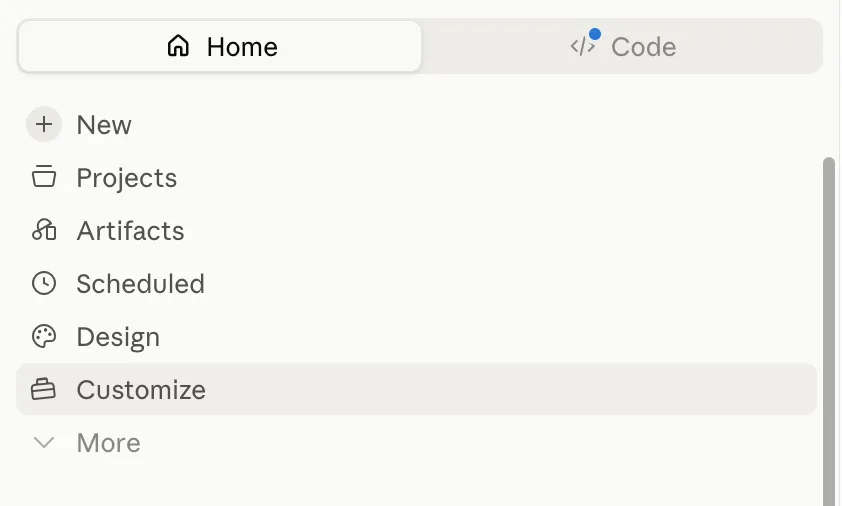
Step 1: Open Customize
In the Claude app, click Customize in the left sidebar.
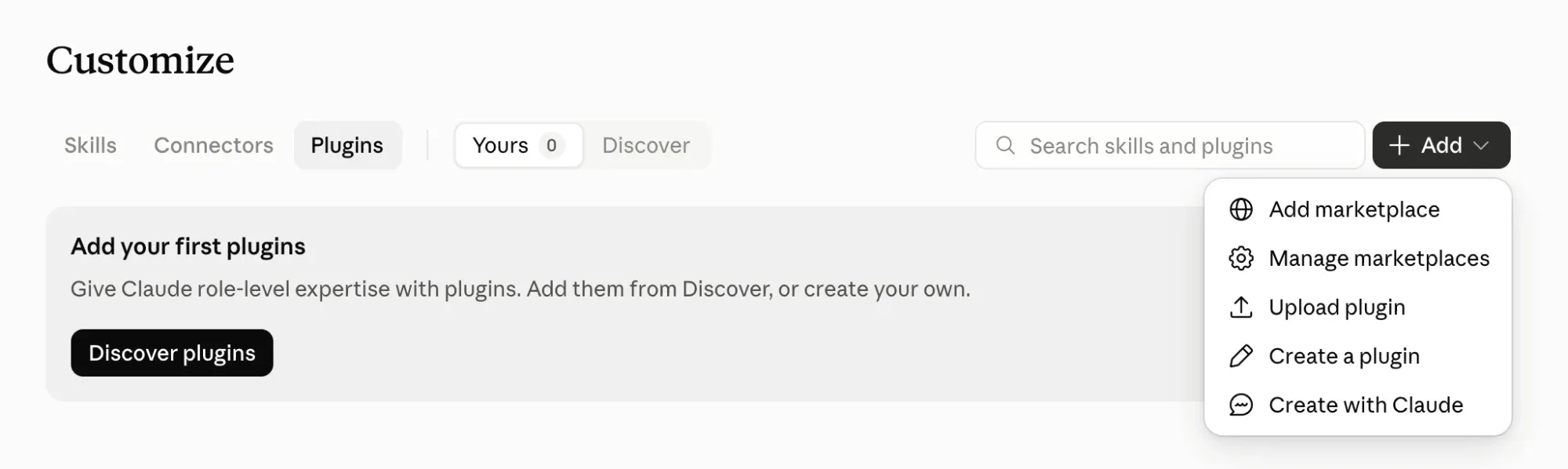
Step 2: Choose Add marketplace
Select Plugins at the top, click Add on the right, then Add marketplace.
Step 3: Add from a repository
In the dialog, choose Add from a repository.
Step 4: Add Pola as a marketplace
Enter
peternotzel/pola-pluginin the URL field and click Sync. Claude shows the red warning in that dialog for every marketplace.Step 5: Add Pola
Pola now shows up in the list of plugins. Click Add.
Step 6: Start a new chat
Click New at the top of the sidebar.
Step 7: Start the setup
Type “Set up my Brain with Pola.” and send it. Pola then walks you through the setup, which takes about 30 minutes.


Claude Code
In the terminal, with three commands.
Step 1: Add Pola as a marketplace
This command gets Pola straight from GitHub. Nothing to download or unzip.
claude plugin marketplace add peternotzel/pola-pluginOne click selects the whole command. Step 2: Install Pola
Install Pola from the new marketplace.
claude plugin install pola@polaStep 3: Start the setup
Start Claude Code and enter
/pola:pola-onboard. Pola then walks you through the setup in about 30 minutes.claude/pola:pola-onboard
